 AppLocker
How to lock apps on Android without an Accessibility service
Many app lockers ask for one of Android's most powerful permissions. You don't need to give it to lock your apps.
What an Accessibility service can do
Accessibility services exist to help people with disabilities use their phones: screen readers, switch controls, voice control. To do that job, Android lets an Accessibility service read what is on your screen and act on your behalf, such as tapping buttons and typing text.
That power is why Android shows a strong warning when you turn one on, and why it's worth asking whether an app really needs it. An app lock only has to know which app is opening; it doesn't need to read the contents of your chats or your bank app.
Why some app lockers ask for it anyway
An Accessibility service gets an event the moment a new window opens, which makes it a convenient way to spot an app starting. Convenient for the developer, but it means trusting the app lock with everything on your screen.
The alternative: two narrower permissions
An app lock can work with two permissions that are far more limited:
- Usage Access: lets the app see which app is in the foreground, so it knows when a locked app opens. It does not show the contents of other apps.
- Display over other apps: lets the app draw its lock screen on top of the locked app.
This is how AppLocker works. It does not use Accessibility services at all.
How to lock an app without Accessibility, step by step
- Install AppLocker from Google Play. It's free for up to 3 apps.
- Allow Usage Access when AppLocker asks. Android opens the Usage Access screen; switch AppLocker on there.
- Allow Display over other apps the same way.
- Allow running without battery restrictions if your phone asks, so the lock keeps running in the background.
- Set your PIN or pattern. It stays on your phone; there is no account to create.
- Switch on the apps you want to lock: your chats, photos or banking app.
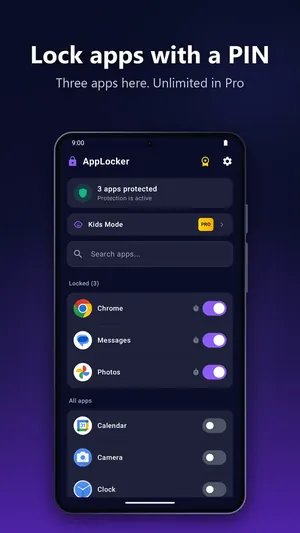
How to check what an app lock is allowed to do
You can review any app's special permissions yourself:
- Open Settings and search for Accessibility. Under installed or downloaded services, check that your app lock isn't listed as turned on.
- Search Settings for Usage access (sometimes "Apps with usage access") to see which apps can see app usage.
- Search for Display over other apps (sometimes "Appear on top") to see which apps can draw over others.
Menu names differ a little between phone brands, so searching inside Settings is the quickest way to find them.
Frequently asked
Is an app lock without Accessibility less secure?
The lock itself works the same way: the locked app opens behind a PIN or pattern screen. What changes is how much the app lock can see. With Usage Access it knows which app opened, not what's inside it.
Does AppLocker need any other permissions?
Only when you turn on a feature that needs them: the camera for Intruder Selfies PRO, notification access to hide notification content PRO, and device admin for Uninstall Protection only.
Try AppLocker free
Lock up to 3 apps with a PIN or pattern. No account, no Accessibility service.
Get it on Google Play