 AppLocker
How to hand your phone to a child without them opening your other apps
A video, a game, a call with grandma. Here's how to make sure that's all they can open.
Kids are quick. One swipe and they're in your messages, your photos or the shopping app with your card saved. Android gives you a free tool for the simplest case, and an app lock covers the rest.
Option 1: App pinning (free, built into Android)
App pinning keeps your phone on one app until you unpin it. It's ideal for a single video or game.
Turn it on once
- Open Settings and search for App pinning. Some phones call it "Pin app" or "Screen pinning".
- Switch it on. If there's an option to ask for your PIN before unpinning, turn that on too.
Pin an app
- Open the app your child will use.
- Open Recent apps (swipe up and hold, or tap the square button).
- Tap the app's icon at the top of its card and choose Pin.
To unpin, swipe up and hold (gesture navigation) or touch and hold Back and Overview together (three-button navigation). Exact steps vary a little by phone brand.
Option 2: Lock your private apps (free with AppLocker)
If you can't stay on one app, protect the apps that matter instead. With AppLocker's free plan you can lock up to 3 apps, for example your chats, your photos and your banking app, behind a PIN or pattern. Your child can use everything else; those three open only for you.
Turn on Uninstall Protection (also free) so AppLocker can't simply be removed.
Option 3: Kids Mode PRO
AppLocker Pro's Kids Mode flips it around: one tap locks every app except the ones you allow. Tick the apps your child may use, start Kids Mode, and hand the phone over. Any other app asks for your PIN.
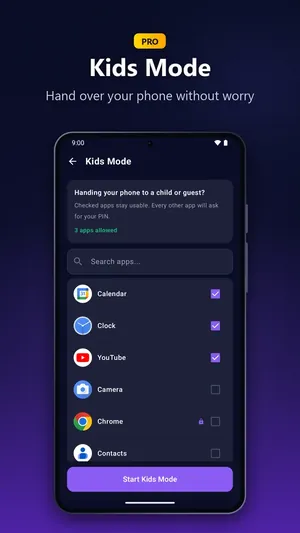
For extra safety, Pro can also lock system screens, so Settings, the Play Store and the app installer ask for your PIN too. That stops accidental purchases and settings changes.
Which option should you use?
- One video or game, you're nearby: App pinning.
- They might wander, but only a few apps are private: lock those apps (free).
- Several allowed apps, everything else off limits: Kids Mode (Pro).
If your child has their own phone, Google's Family Link is built for that: it manages the child's own Google account and device. The options above are for lending your phone.
Try AppLocker free
Lock up to 3 apps with a PIN or pattern. No account, no Accessibility service.
Get it on Google Play